Public and Private teams
Update, public and private teams have been simplified, details here
In Microsoft Teams there are two types of team, Public and Private.
Public means anyone in the organisation (tenant) can join the team at any time without any approval
Private means owners of the team must admit new members.
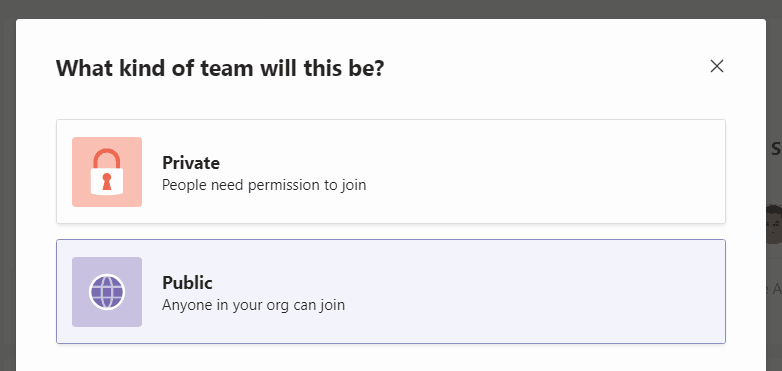
I’m not in love with the names as these types have no bearing as to there being external guests (from other organisations/tenants) in the team. Open and Closed might make more sense, but it is what it is.
Discoverability
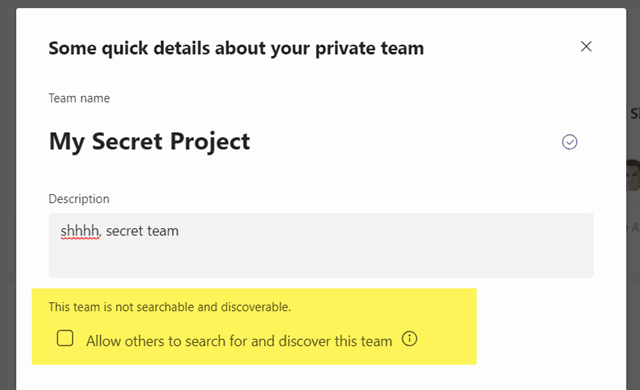
By default both Private and Public teams are discoverable. Meaning when users go to join or create a team
Note, originally private teams were not discoverable, this default changed in 2018 to allow a better user experience to find and join private teams.

Public teams are always discoverable. Private teams are discoverable by default, but when creating a private team, users can elect to make the team not searchable and discoverable. I.e. hidden from the join team screen and search. These are Non-discoverable private teams or Hidden Teams.


The use case here is a team that is not appropriate for people to know about outside of the members.
How can an administrator find non-discoverable
An administrator might have reason to find or report on non-discoverable/hidden teams
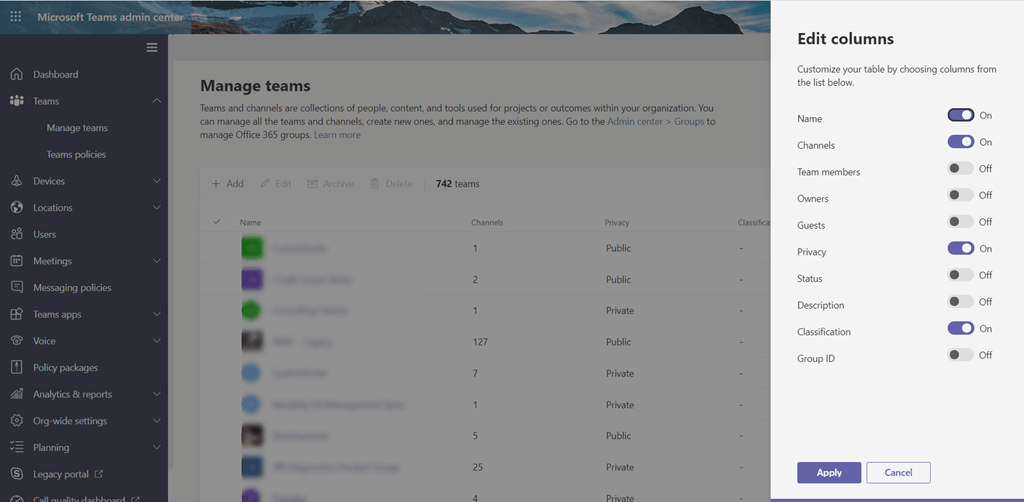
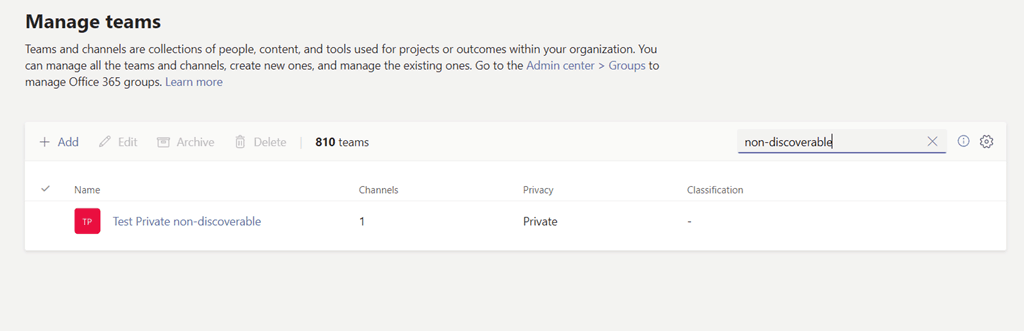
Teams admin center has some basic Team reporting and shows Privacy for Teams as Public, Private but does not show if they are hidden or not.
Note I have removed a bunch of columns for an easier screenshot
Example hidden / non-discoverable team – there is no way to know its non-discoverable.
Finding Hidden Teams with PowerShell
Fortunately, it’s easy to find hidden teams by PowerShell. From the PowerShell console run:
# Install the Microsoft Teams PowerShell Module from PSGallery
Install-Module -Name MicrosoftTeams -Repository PSGallery -Force
# Connect to Microsoft Teams
Connect-MicrosoftTeams
# Get hidden teams
get-team -Visibility HiddenMembership | Format-Table -AutoSize
$HiddenTeams = get-team -Visibility HiddenMembership
Foreach ($team in $HiddenTeams)
{
$team.DisplayName
write-host “”
Get-TeamUser -GroupId $team.groupid | Select-Object User,Name,Role | Format-Table
write-host “”
write-host “#############”
write-host “”
}
$allteams | Where-Object {$_.ShowInTeamsSearchAndSuggestions -match “False”} | Format-Table DisplayName,ShowInTeamsSearchAndSuggestions,GroupId
That will give you a complete list of the hidden teams, their groupid, display name and description.
Hi Tom, Thanks for the blog. great job.
In my tenant, i dont get the option ” This team is searchable…..Change Settings”. Where can i enable this (if at all). – Kishore
Can you screenshot what you see? Thanks