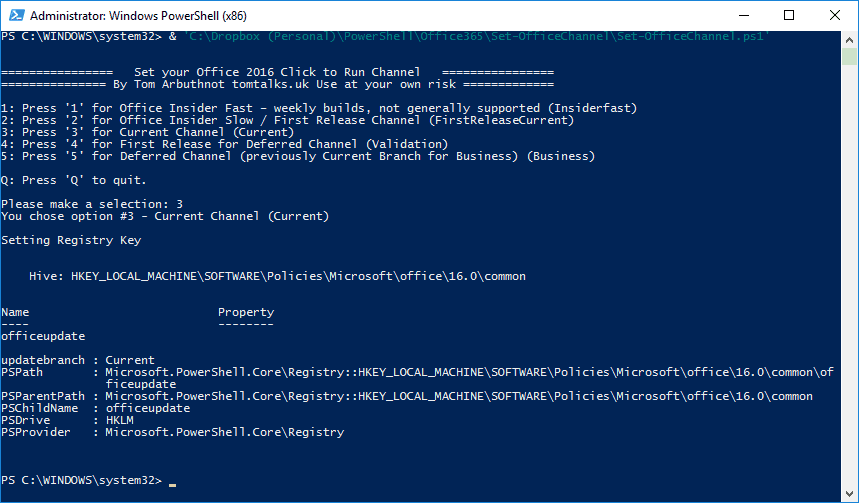
I’ve written a quick PowerShell script to allow you to choose your Channel from a Menu. The script sets the appropriate registry key to define the channel and kicks off the Office Click to Run Update to pull the latest build.
- This allows you to quickly move from channel to channel, even “backwards or forwards”
- This will “override” the tenant level setting
- You must run the script as administrator
- Save your work and close Office apps before running
- Use at your own risk
You can get the script here: https://github.com/tomarbuthnot/Set-OfficeChannel
Office Click to Run offers a number of Channels (Branches):
2 Channels for normal users:
- Current Channel (Current)
- Deferred Channel (Business)
3 Channels for validation/testing:
- Office Insider Fast (Insiderfast) – weekly builds, not generally supported, the earliest public channel
- First Release Channel (FirstReleaseCurrent) – the preview of the current branch, this is the “pre-release” of current
- First Release for Deferred Channel (Validation) – the preview of the business branch
For full details check out my Channels Blog post
As soon as the script has run you will see the following:


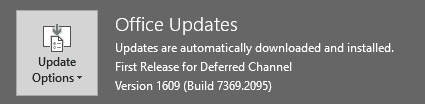
The Channels:




[…] Update: for a quick way to do this with PowerShell see: https://tomtalks.mystagingwebsite.com/2017/01/set-officechannel-set-office-click-run-channel-powershell/ […]
Nice script Tom!
Thanks
Still works magic!! Thanks for your script! However, I did use the pull requested version because it is updated to support a change Microsoft made.
Thanks, I must get over to github and accept that.
Does not work, getting message your office is already up to date & there is no change in office 365 channel
Just tried it today (2/17/2020) and it worked great. Only need to change the channel names as they’ve changed on Microsoft’s end, and they removed one of them as well I believe.
Thanks Steve
Hello Tom great script but the names have changed since you did it will you update your script ?