One of the most useful things when hitting a bug or an issue is a screen recording of the actual issue. Screenshots are great, but you can’t beat a recording for quickly explaining an issue.
Previously I’ve used things like the great TechSmith Camtasia and Snagit, and in a pinch on a machine where I don’t have those installed, screencast-o-matic.com
Those are not always an option or an easy option on a users PC. However the great Carolyn Blanding – Sr. Supportability PM in Skype and Teams gave me this tip the other day, you can record your screen from PowerPoint!
PowerPoint 2016 introduced the ability to take screen recordings and that feature has been added to PowerPoint 2013 as well.
Insert, Screen Recording

Select Area

Turn off Audio if you like, Hit Record
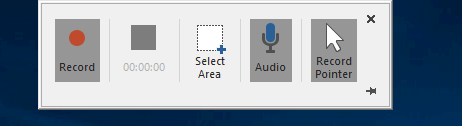
When done find the hidden control bar at the top of your screen and hit stop

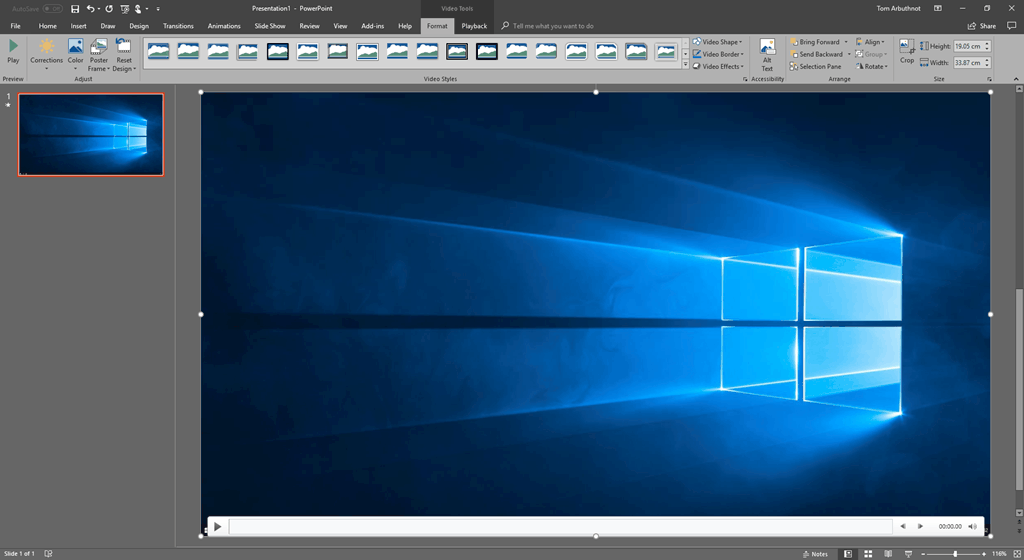
Your recording will be dropped into PowerPoint
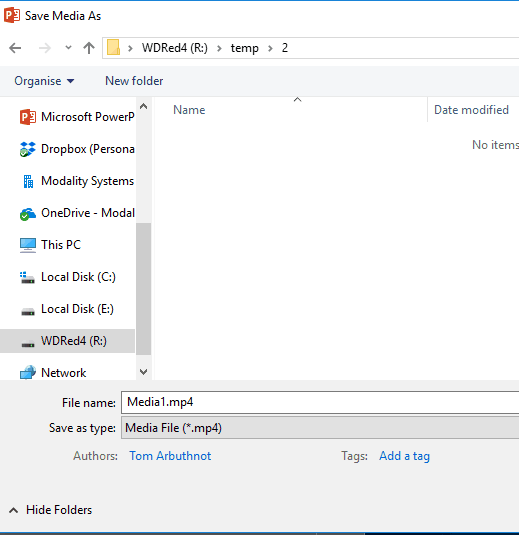
To save it as an individual video file, right click, save media as

It will save as a nice .mp4, full res, 10 fps
So there you go, a quick way to record your screen on nearly all PC’s.
Be First to Comment