
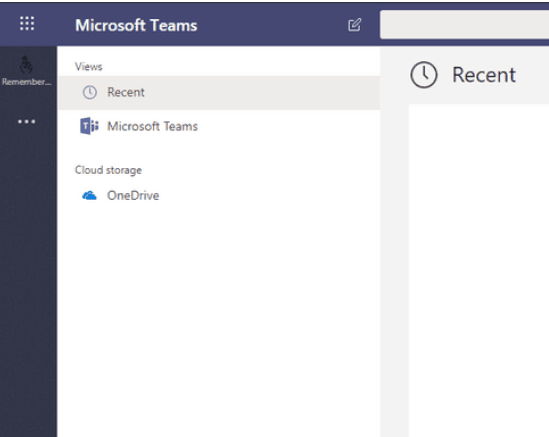
A new Microsoft Teams configuration option, App Setup Policy, is being rolled out to tenants. This gives administrators the ability to control which apps show in the “main menu” in Teams, the left rail in the desktop/web client, and the bottom menu and “draw” in the mobile client.
Administrators can ‘pin’ non-Microsoft apps, such as third-party apps or company-built internal apps, and can hide the standard functionality (Activity, Chat, Teams, Calendar, Calls & Files, which essentially are also “apps”).
It’s worth nothing that “removing” apps from the user’s main menu doesn’t prevent users accessing them. They are really hidden from default view. Users can still click the ellipses (three dots) at the bottom of the menu to gain access to all the core Teams apps and other featured apps.
My friend and Modality colleague Tom Morgan has already has an extensive blog and video on this, I recommend you check it out: How to: Show/Hide Apps on the Teams Main Menu (including hiding Activity, Chat, Teams, Calendar, Calls & Files!) with App Setup Policy
Microsoft Documentation: Manage app setup policies in Microsoft Teams
Be First to Comment