Update: for a quick way to do this with PowerShell see: blog here
##########
As discussed in this post, Understanding Office Click-to-Run, Branches, MSI and Skype for Business Client Versions, Office 2016 Click to Run is released in 5 “Channels” (previously branches)
2 for normal users:
- Current Channel (previously called Current) (Current)
- Deferred Channel (previously Current Branch for Business) (Business)
And 2 for validation/testing:
- Office Insider Fast (Insiderfast) – weekly builds, not generally supported
- First Release Channel (FirstReleaseCurrent) – the preview of the current branch, this is the “pre-release” of current
- First Release for Deferred Channel (previously First Release for Current Branch for Business) (Validation) – the preview of the business branch
The current channel gets feature and security updates monthly and is the default for Home installs
Deferred Channel (the default for enterprises) gets security updates monthly but only gets feature updates every 4 months, giving businesses more time to assess the impact of any changes. There is also a branch for business to test the upcoming Deferred Channel, the catchily titled “First Release for Deferred Channel”
Office 365 “First Release” Channel (Office Insider Slow), is essentially a preview of the current channel, with build updates once or twice a month. Finally Office Insider Fast offers weekly unsupported builds with all the latest features
You can define the branch of an install at point of install with the Office Deployment Tool which uses an XML file to customise the install and optionally set the branch, for example, this XML sets the install to the Deferred Channel
![image_thumb[2]](http://tomtalks.blog/wp-content/uploads/2016/01/image_thumb2.png "image_thumb[2]")
You can also choose your channel by setting a registry key and/or you can set you branch by GPO, including setting it by GPO on the local machine.
Note, changing the channel “down” for example from FirstReleaseCurrent to Current does not seem to cause office to “roll back” from the newer build to the current build for that branch.
Setting Office Click to Run Channel via the Registry
Here is the registry key to choose a channel (Thanks to Kyle in the comments!)
HKEY_LOCAL_MACHINE\SOFTWARE\Policies\
Microsoft\
office\16.0\common\officeupdate
Value name: updatebranch
Value type: REG_SZ
Set the value to:
- Insiderfast (Office Insider Fast)
- FirstReleaseCurrent (for First Release Branch/Office Insider Slow)
- Current (for Current)
- Validation (for First Release for Deferred Channel)
- Business (for Deferred Channel)
Setting Office Click to Run Channel via Group Policy
Here is how to set it for a machine using a local GPO, i.e. it can be configured on the local machine with administrator access.
First, download the Office 2016 Administrative Template files (ADMX/ADML).
When you run it, it will extract the following files:
![clip_image001_thumb[2]](http://tomtalks.blog/wp-content/uploads/2016/01/clip_image001_thumb2.png "clip_image001_thumb[2]")

- Copy the .amdx files files from the admx folder to C:\Windows\PolicyDefinitions
- Copy the ADML files the relevant language folder, e.g. en-us, to the relevant folder on your system e.g. C:\Windows\PolicyDefinitions\en-US
You technically only need office16.admx and office16.adml to set the branch
Do a gpupdate/force under CMD as an administrator
Run gpedit.msc and fine the Administrative Template for Office 2016 then Updates and set the Update Channel to one of the following, in order of most up to date to least
- Insiderfast (Office Insider Fast)
- FirstReleaseCurrent (for First Release Branch/Office Insider Slow)
- Current (for Current)
- Validation (for First Release for Deferred Channel)
- Business (for Deferred Channel)

![clip_image002_thumb[3]](http://tomtalks.blog/wp-content/uploads/2016/01/clip_image002_thumb3.png "clip_image002_thumb[3]")
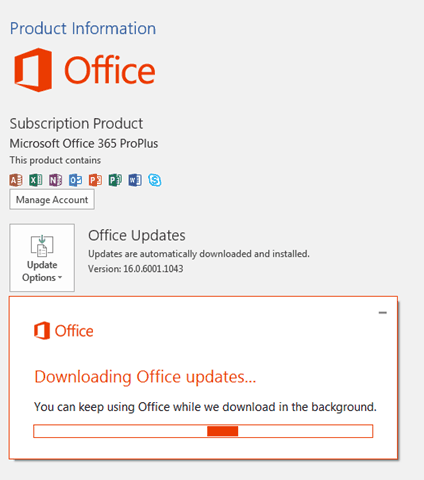
After another gpupdate, my install previously on the Deferred Channel was ready for an update
![clip_image003_thumb[2]](http://tomtalks.blog/wp-content/uploads/2016/01/clip_image003_thumb2.png "clip_image003_thumb[2]")
![clip_image004_thumb[2]](http://tomtalks.blog/wp-content/uploads/2016/01/clip_image004_thumb2-1.png "clip_image004_thumb[2]")
![clip_image005_thumb[2]](http://tomtalks.blog/wp-content/uploads/2016/01/clip_image005_thumb2.png "clip_image005_thumb[2]")
Thank you Tom!
Tom,
You have
“Copy the ADMX to to C:\Windows\PolicyDefinitions”
That looks wrong. What should it be, please? Do you mean the “ADMX folder”, all the files in the admx folder, just the files in the admx/en-us folder or something else?
Yeah, that’s a terribly written step, it should be:
Copy the ADMX FILES to C:\Windows\PolicyDefinitions
Copy the files in the ADMX folder to the Policy Definitions folder.
To be clear – Great Article! Just one bad step ;-)
Thanks for the feedback, I’ve tried to make this easier to follow :-)
Assuming that it should have read, “Copy the ADMX files to C:\Windows\PolicyDefinitions”, I went ahead and followed your instructions. I was then able to update Office so that my Access 2016 works properly, i.e. is able to correctly display images on reports. Thank you so much for this. Why Microsoft don’t supply such information themselves beats me though.
When you say “Note, changing the GPO “down” for example from FirstReleaseCurrent to Current does not seem to cause office to “roll back” from the newer build to the current build for that branch”
Does it mean we can’t switch from a branch to another once it is installed?
You can switch, but if you start on FRC, and download build 16.10, but then change GPO to Current, and the current build is 16.5, the install doesn’t “roll back” to 16.5. I haven’t left it long enough to understand which of the these two would happen:
1) If Current goes to 16.7, is the change enough to force a “roll back”
2) Only when current gets to above 16.10, will you upgrade.
I would bet it’s 2, but have not validated yet.
[…] Note, you can also define the branch you are on by local or group policy […]
[…] https://tomtalks.mystagingwebsite.com/2016/01/choose-office-2016-branch-local-group-policy/ […]
You can manually set the update branch:
HKEY_LOCAL_MACHINE\SOFTWARE\Policies\Microsoft\office\16.0\common\officeupdate\updatebranch = Validation, Current, Business, FirstReleaseCurrent
Restarting the Click2Run service should make this take effect. I suppose you can set it in the non-Policies key alternatively.
Interesting Kyle, thanks for that!
My office seems to ignore the currentchannel registry key. Any ideas ?
I have run process monitor and nothing seems to be looking at the key?
Awesome article – the instructions worked perfectly.
Thanks Jeff!
Please note that this only applies to CDN-delivered updates.
If you configure Office Pro Plus to receive updates via SCCM/WSUS then a different update mechanism applies and this policy is ignored.
To choose a channel in an SCCM/WSUS scenario you need to modify
CDNBaseUrl under HKEY_LOCAL_MACHINE\SOFTWARE\Microsoft\Office\ClickToRun\Configuration
…with the appropriate GUID:
O15 PU – Office 365 ProPlus (2013) 39168D7E-077B-48E7-872C-B232C3E72675
FRCC – First Release Current Channel 64256afe-f5d9-4f86-8936-8840a6a4f5be
CC – Current Channel 492350f6-3a01-4f97-b9c0-c7c6ddf67d60
FRDC – First Release Deferred Channel b8f9b850-328d-4355-9145-c59439a0c4cf
DC – Deferred Channel 7ffbc6bf-bc32-4f92-8982-f9dd17fd3114
Thanks for sharing this Vidar, appreciated.
Tom
Thank you!
No problem! thanks for the comment
Hello, soory my English is not very good, i dont unerstand everthing
So, i understand with O365 proplus we can select branch
but for Office 2016 MSI, what is the branch, what is the cycle of update ? every 6 months ? later than office 365 pro plus ?
thanks
Hi,
No probs, My everything other than English is not good :-)
Branches only apply in Click to Run. MSI doesn’t have branches, just a version and MSP patches.