Microsoft Teams Walkie Talkie is a push-to-talk feature that allows users and groups of users to quickly and securely communicate using the Microsoft Teams app on Android or iPhone mobile phones. It also works on physical Teams IP Phones for desk-based users.
It’s targeted at front line workers and scenarios in retail, manufacturing, security and healthcare. It is included in Microsoft Teams at all licence levels.
Teams Walkie-Talkie works over Wi-Fi/internet rather than radio. This freedom from radio range limitations is a significant advantage over traditional walkie-talkies.
Users are grouped by the same underlying Teams channels that they’re already members of. They can use the Teams app on mobile and/or attach a headset for a hands free experience.
Here is a quick demo video of me using Teams Walkie Talkie
How Teams Walkie-Talkie works
Teams Walkie-Talkie is an app on the Teams mobile client. By default you can find it in the tray by hitting the three dots more button. Users or Admins can pin the app in the tray if they want, making it easier to access.
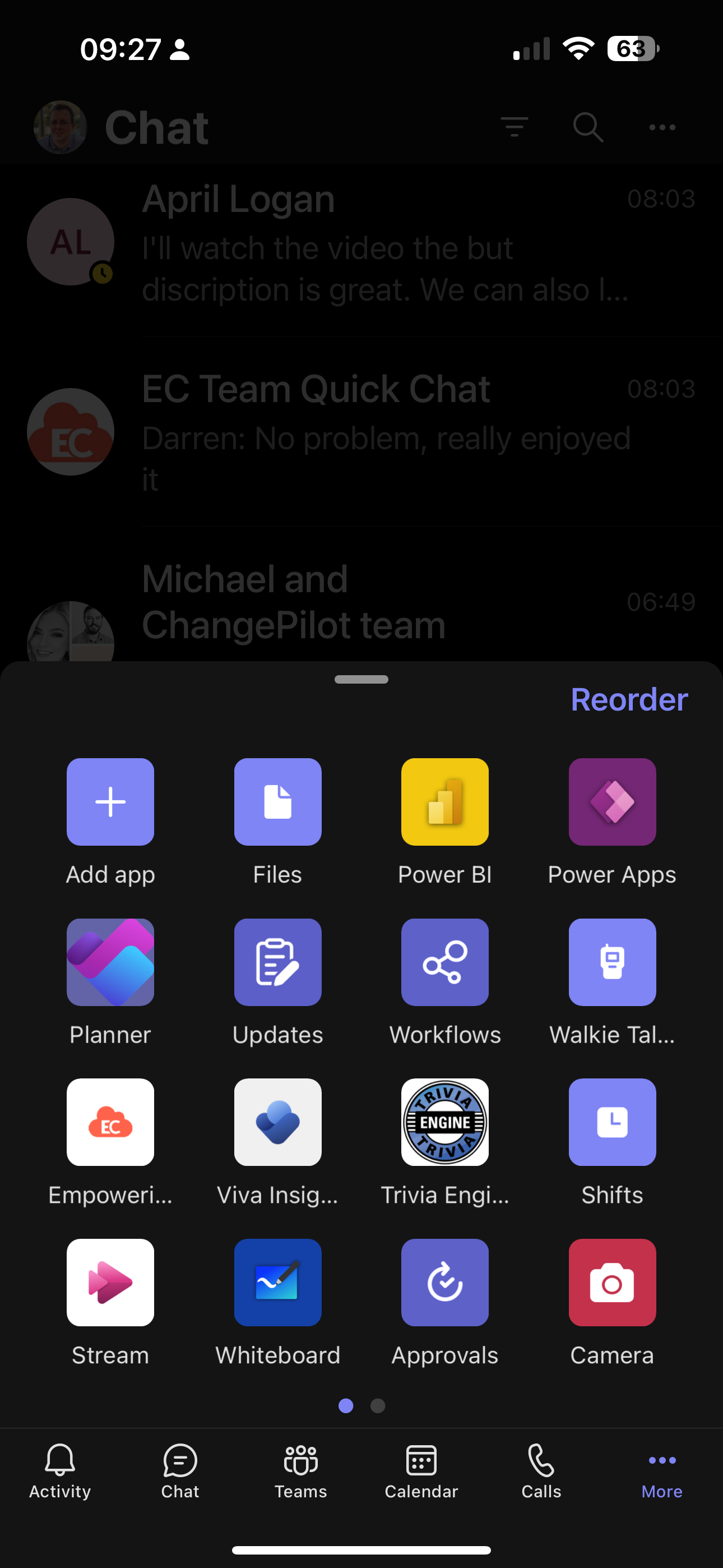
Walkie-Talkie uses Teams channels to define the group of users you are talking to. Everyone who is a member of that channel and signs into Walkie-Talkie can hear and talk to the group. You can have up to 5 favourite channels in Walkie-Talkie and sign into/out of whichever you want.
Your favourite channels are pinned at the top of the Walkie Talkie screen in alphabetical order, making it easy to switch channels.

Microsoft recently added the option to listen to multiple channels. users can optionally now automatically listen to incoming transmission from their favourite channels one at a time.
Once signed in it’s a simple as pressing the software button to talk, or using a handset or headset with a push to talk button.
Note Walkie Talkie can’t be used/joined in the desktop clients, but physical IP Teams Phones can be signed into Walkie-Talkie for users who are more desk based.
Microsoft Teams Walkie Talkie Devices and headsets
While Walkie talkie works with pushing the software button in the app, there are also a series of Rugged Android phones with physical push to talk buttons that have been tested and confirmed compatible, including Crosscall, Kyocera, Honeywell, Samsung, Sonim, Zebra.
On Android only, Walkie Talkie works with any generic wired 3.5 mm and USB-C headset with a play/pause button or an answer/end call button headset. These buttons activate the push to talk.
For the best headset experience Microsoft has certified supported 3 headsets on both Android and iPhone from BlueParrott, Jabra, Klein Electronics.
I am testing out Walkie Talkie on the Jabra Perform 45 headset. Thanks to Jabra for providing the headset and supporting my work.
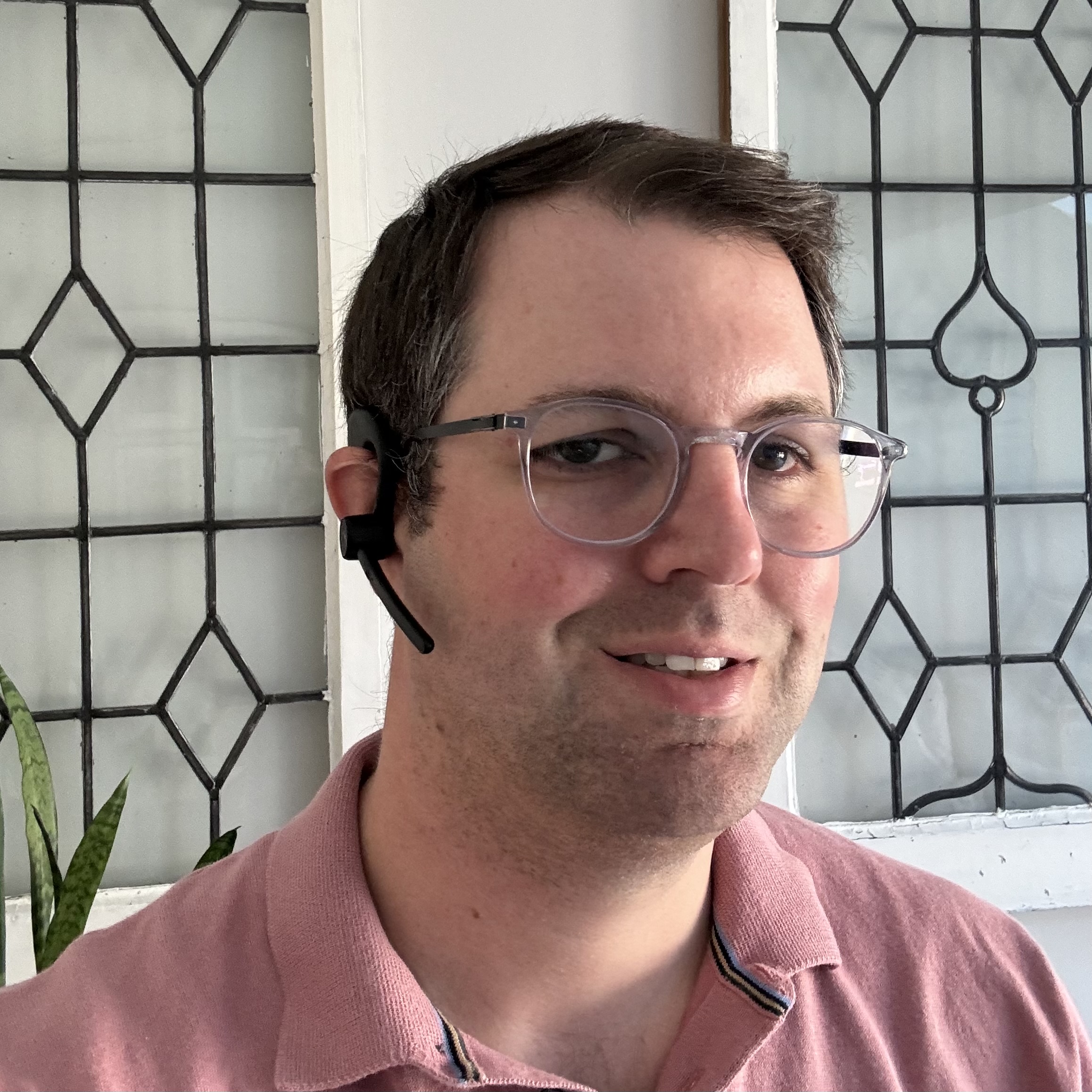
The Jabra Perform 45 is a lightweight, discreet Bluetooth mono headset designed for frontline workers in retail environments. Features include:
- Lightweight at only 18g with an unobtrusive in-ear, over-the-ear design for all-day comfort
- Push-to-Talk button for instant communication on platforms like Microsoft Teams Walkie Talkie
- Ultra-noise-cancelling microphone removes up to 80% of background noise for clear communication in noisy environments
- Face2Face mode – lifting the microphone boom automatically mutes incoming audio to avoid distractions when helping customers face-to-face
- IP54 rated design that is easy to clean and sanitize
- Bluetooth 5.1 provides wireless range up to 100m/300ft
- Up to 8 hours of talk time on a single charge or 20 hours of Push-to-Talk time
- USB-C charging and compatible with the 5-bay charging stand for efficiently charging multiple headsets
- Customizable options available through the Jabra Direct app
Find out more about the Jabra Perform 45 here.
With the Jabra Perform 45 you have to ensure the customisable “action button” is set to “answer/end call”. Once your headset is bluetooth paired with your Phone you will see the Teams icon change from a Mic to a headset icon.


Now pressing the button on the headset invokes talking on walkie-talkie, even if the Teams app is not in focus on the phone. There is a second for it to setup the audio channel, but the headset gives you a nice ping indicator so you know when it’s ready for you to talk.
If anyone else in the channel talks it is automatically heard into your headset, again no need for the Teams app to be in focus on the phone. Everything works in both directions even if the phone is locked.
Teams Walkie Talkie usage and performance report
There is a Walkie Talkie usage and performance report in the Microsoft Teams admin center that gives you an overview of Walkie Talkie activity. The report provides information such as the number of push-to-talk (PTT) transmissions made and received, channel activity, transmission duration, and device and participant details. See Microsoft docs for more detail on the report.
| Column name | Description |
|---|---|
| TenantId | Tenant ID. |
| UserId | User ID. |
| DeviceId | Device ID. |
| ChannelId | The Walkie Talkie channel in which communication happens. |
| ConversationId | ID of each PTT transmission. |
| TeamId | ID of the team that corresponds to the Walkie Talkie channel in which the user connects to. |
| UnreachableParticipantsCount | Number of participants flagged as unreachable and hidden from the roster because they weren’t able to receive any of the last five transmissions. |
| TransmissionDuration | Duration of time (in milliseconds) between when the service receives the notification that one participant is about to start a transmission to when the service delivers the last package of that transmission. |
| TotalParticipantsCount | Total number of participants connected to the Walkie Talkie channel. |
| PacketCount | Number of packets used to send the audio transmission. |
| NotifiedParticipants | The participants to which a push notification is sent when a transmission starts. In scenarios where the connection between the device and service is lost, a notification is sent to the device to re-establish the connection as soon as possible because a transmission is coming. |
| AudioDurationMilliseconds | Duration of the transmission in milliseconds. |
| ConnectionId | ID of each connection to a Walkie Talkie channel that’s established by the device. |
| TransmissionStartTime | Date and time when the first audio packet is received by the service. |
| TransmissionEndTime | Date and time when the last audio packet is received by the service. |
| ParticipantList | A semi-colon delimited list of IDs of the devices connected to the channel at the time the transmission is sent. |
| CallTimedOut | Whether the transmission exceeded the duration limit. This is a Boolean value. |
| Platform | Device operating system. |
| ParticipantType | Whether the participant was the transmitter or a receiver of the transmission. |
| WebSocketState | Whether the status of the connection between the device and the service was already established when the transmission started. |
| AppVersion | Version of the Teams app installed on the device. |
| ClientCallStatus | Indicates if the device was able to receive the transmission without any issue. |
Find out more about Teams Walkie Talkie on the Microsoft documentation here
Be First to Comment