First previewed in March at Enterprise Connect, Microsoft is now rolling this feature out a as part of a Microsoft Teams Rooms Update.
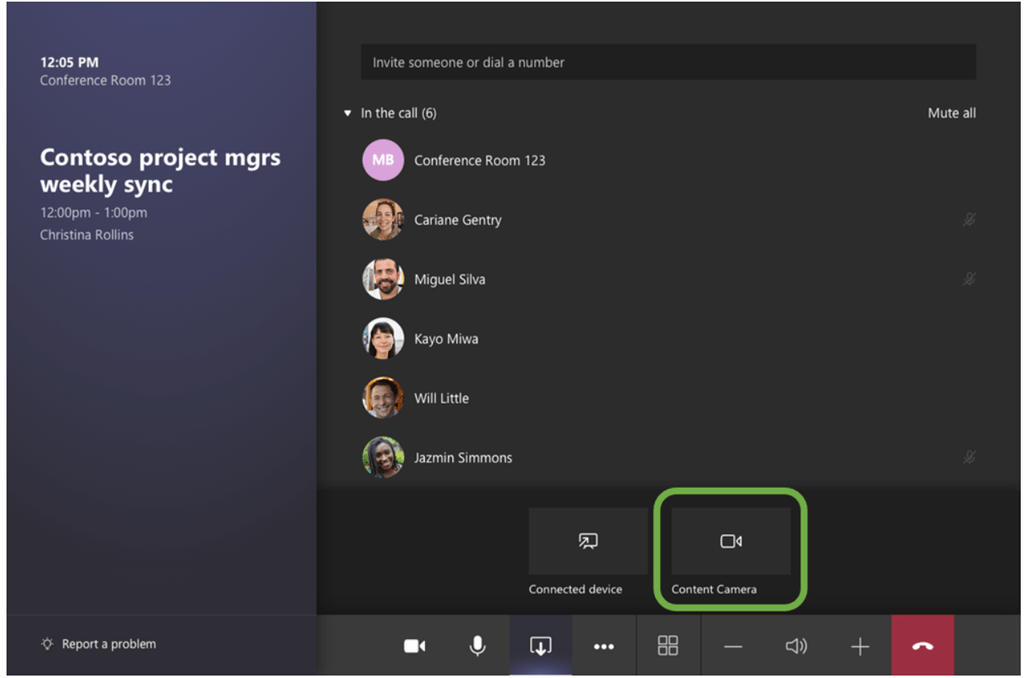
You can now connect a second certified webcam from either Logitech or Crestron (rebranded Huddly) pointed at a whiteboard. When you press the Content Camera button it intelligently detects, crops and frames the in-room whiteboard and shares its content with remote meeting participants. It also “ghosts” people who walk in front of the whiteboard.
The size of the whiteboard used for sharing affects the placement of the camera. Board size recommendations are:
- 3–6 ft. (0.9–1.8 m) wide — Supported
- 6–9 ft. (1.8–2.7 m) wide — Recommended
- 9–12 ft. (2.7–3.6 m) wide — Supported
- Above 12 ft. (3.6 m) wide — camera covers 9–12 ft. (2.7–3.6 m) and crops the rest.
This should work for fixed whiteboards, free-standing / stand whiteboards, and paper pads on easels. Anything with a good defined border should work well.
You can use dark-coloured tape or other items to create a defined content camera area on a full-wall whiteboard.
A writing board that isn’t white is not supported.
You should check your camera is up to the certified firmware level


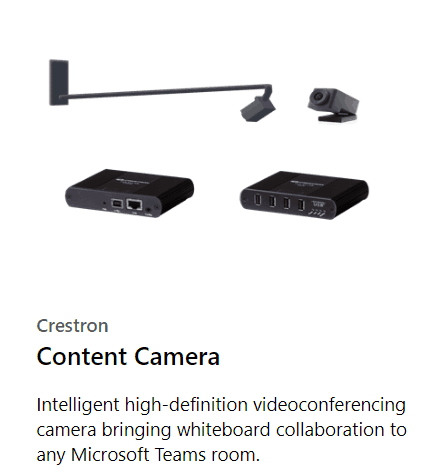
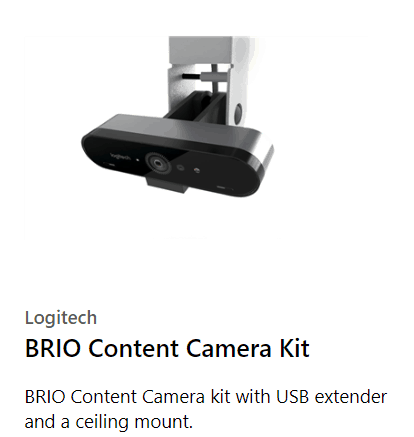
Two come with mounting kits, there are more kits coming apparently.
Reference:
Be First to Comment