Sometimes number formatting in a Word document gets corrupt and shows as black box, here is how to fix it:
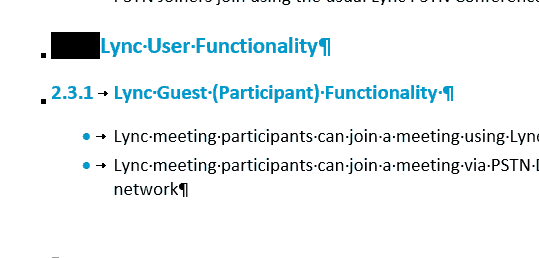
- For each Heading, Modify / Numbering / None / OK
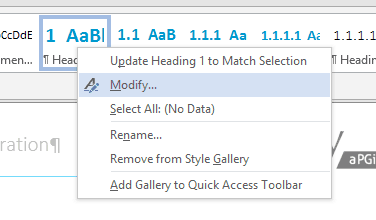

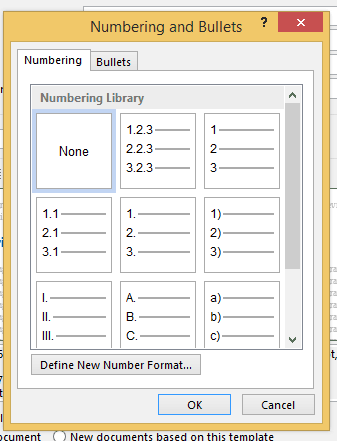
Once all Headings are set to no numbering, select a heading set to heading one

And select on the Home ribbon, the Multi-level List with Numbers and headings.

All Headings should now have the correct numbering:

Excellent fix. Thanks much for your help. Greatly appreciated.
Cheers,
Excellent
:-)
Worked perfectly. Thank you.
Great!
Thank you. Was a great help.
Glad it was useful :)
thanks
Great – thanks
I wasted so much time on this prior to your fix …… thank you!!!!
Me too :-), glad it helped :-)
for some reason this isn’t working for me
Thank’s Tom! At the same time, I have to say that why on earth I have to search some fixes to problems existing in Microsoft products all the time?
Me too. I’m just glad there are well-informed (experienced ?) folks who are willing to share what they know when my Microsoft world falls apart. Again.
Thanks a lot,
this is permanent solution
You’re awesome, thank you!!!
This is the first time this has ever happened to me, so I was dumbstruck. Thank you so much for your help – it worked perfectly.
Happened to me just this morning on a raft of ISO documentation. I was no impressed. This fixed it though. Thanks
great, glad it was useful! cheers
This worked – I tried quite a few other solutions. Also, it was clear and easy to follow. Thank you.
Great!
God bless you, Tom ! I wasted 2 hours trying to fix it myself before resolving to Google, and I’m so glad I found your post. You absolutely nailed it!
Thank you so much !
You saved a lot many hours, glad that i googled & found out your fix. Thanks a lot man.
Glad it helped :-)
I found this solution elsewhere and it actually worked better without messing up 3rd and 4th levels of my lists in Word 2016:
Place the cursor just to the right of the black box in any example of the affected heading.
Hit ? (left arrow) and the black box should turn gray.
Type Ctrl+Shift+S to bring up a style popup.
Click Reapply.
thanks for sharing!
This actually worked better for me. Thanks for the tip
thanks so much!
Thank you so much for taking the time to share this, I’d tried other solutions which worked in the very short term didn’t survive closing and re-opening the document. Yours does …. hooray.
excellent, thanks for the comment :)
Hello there,
this solution worked for a while and now the problem reappeared, but only for headings level one. I have tried to redo this a few times but the black square keeps reappearing. Any ideas?
No sorry not sure off hand. It hasn’t re-appeared for me. If it’s one specific document maybe that document is just somehow corrupt?
Thanks for posting the solution. Bad that Word corrupted the document but great that you knew the fix. :-D
It worked for a while, but resurfaced.
And it also occurrs with bulletted lists.
Tom, if I send you the file, can you save us all from Microsoft’s misdeed and reluctance to fix this?
Give us the knowledge of what is happening, how and and why.
Then we can prevent it from happening until Microsoft decides to clear this.
sorry I can’t do 1:1 help via the blog, maybe start a thread on https://techcommunity.microsoft.com/
thanks
Hello,
This was the easiest and best solution for this issue that appeared out of nowhere and I write a lot of documentation for my consulting business. Thanks!
glad it was useful :-)
Wow. Simply awesome. I spent a lot of hours looking for different solutions and tried many of them but the problem just did not budge. Then I luckily found your solution and man I was relieved. Thank you so much. Keep helping people.
great to hear, thanks!
This worked! And stuck after re-opening file, unlike other solutions
At last I’ve nailed this numbered heading thing, thanks to your clear instructions ;)
Great stuff Katheryn
Thanks you Tom.
Works fine 3 years later with the last Office 365 ProPlus version.
Quick tip: You can use F4 function (named ReDo) to remove the numbering after remove a first time
Me too. Other fixes caused the problem to return each time the document was open.
Thanks, Tom! It almost worked for me but I had to do one extra step after setting Heading 1 to Multi-Level List. I had to right click on Heading 1 on the ribbon and select “Update Heading 1 to Match Selection”. Then headings 1, 2, 3, 4 updated correctly. I am using Word 2016 in case it works differently in this version.
Thanks for sharing!
Thank you! This was a big help.
Glad it was useful
Saved my ass, thx !
Thank you! This was a big help
Thank you for this, it solved my problem. It’s a little frustrating though that such an obvious bug has no fix nearly 5 years on. I’m pretty sure MS has no intention of ever fixing this. They will keep calling people MVPs for knowing the workarounds for their bugs. Pretty clear that the legacy MS software is irredeemable. It’s just slowing dying.
Thank you so much!!!! You saved me hours.
?
Another great MS “feature”! Following these instructions fixed the black box issue, but now the numbering scheme and indention are also erroneous. Time to waste an hour and cut and paste into a new document … hopefully the corruption doesn’t migrate there too, lest I email the copy to myself and use another computer altogether. Gotta love Windows with all these time-saving “features” that pop up right before deadlines!