
Microsoft Teams offers you a number of ways to customise and control how you see and engage with your Teams collab workspaces (teams) and channels.
Global Notification Control and Customisation
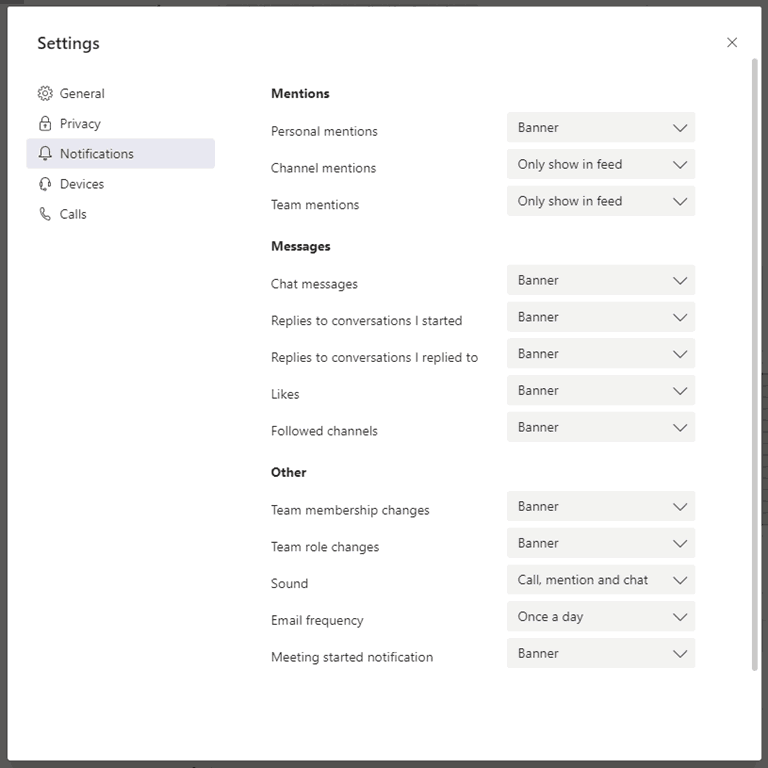
At a global level, you customise your notifications:

Each type of action can be customised with some combination of (depending on the activity)
- Banner
- Banner and email
- Only show in feed
- Off
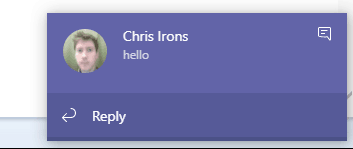
Banner is what some users might call a “Toast” or “Pop Up” notification in the bottom right of your screen, or more traditional push notifications on mobile.
Email is summary emails, these can be useful reminders if people don’t have Teams open all the time

Feed is your activity feed in teams, new items will be in bold, you can filter them by type:

Customise Alerts on Mobile and Mobile Quite Hours
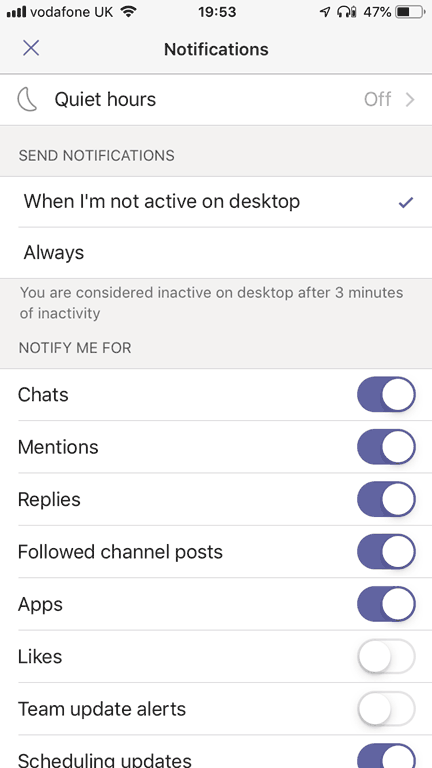
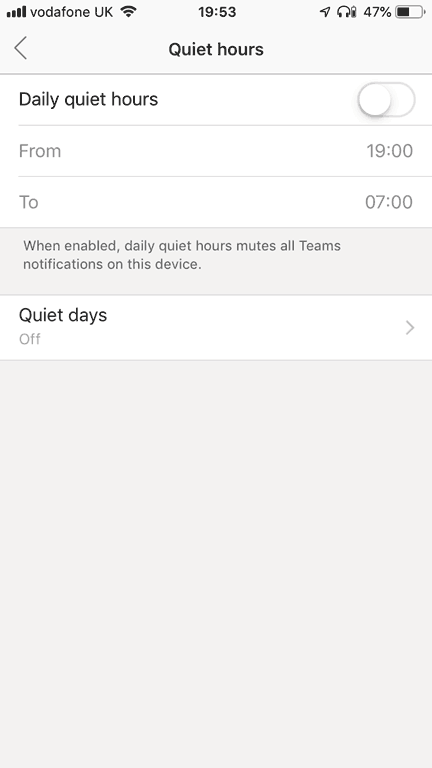
The mobile client allows customisation of what to be alerted on and how, but also quite hours and days which is a really nice idea.

Team and Channel Visibility
Teams will show bold black when there is new activity, and if you expand the team the particular channels with activity will show boldly.

At a team level, only your “Favourite” Teams are shown by default, the rest are hidden under “More”. You can Favourite or un-favourite a team by right-clicking on the ellipses by the team name.
You can also drag teams up and down the list to control their order.

In each team, you can control which channels are shown to you by default and which are hidden under “X more channels” by favourite/un-favourite.
You can also follow a channel. Follow is subscribing you to get notifications for any and all activity in that specific channel. I would use this sparingly, only for a channel where I really need to drop everything if there is a message.

Be First to Comment